
iPhone photos are huge. A single image can be a few MB depending on your camera settings, the lighting conditions, and other parameters. That means that the resulting output is super high-quality, even if you expand it on a computer.
However, they quickly eat up your storage space. They can also be difficult to send or upload through mail, messengers, etc. due to their size. In this article, we’ll show you how to compress photos on your iPhone so they take up less space and are easier to manage.
Table of Contents
When You Need to Reduce the Size of the Photo
There are many good reasons to compress photos, especially since it usually doesn’t result in the loss of quality. Not only can photo compression improve your device experience, it can also help you work with images faster (e.g. sharing them with colleagues).
Below are common scenarios where photo compression is especially useful. Some of them aren’t that obvious, but they are actually relevant to many day-to-day tasks we use our devices for.
- Printing: If you need to print a lot of photos, raw iPhone camera photos can take a long time to transfer due to their file size. Compression will speed up this process while maintaining image quality.
- Sending emails: There are 3 reasons to compress photos for emails: (1) the email gets sent faster, (2) some mail clients only allow attachments until a certain file size, and (3) large attachments take up more of the limited storage space your mail client provides.
- Free up storage space: The average iPhone photo is just under 3 MB in size – compression can help lessen that footprint by more than half. However, if you have a huge photo library, deleting unnecessary photos will usually free up much more space and take far less time than compressing images one by one. In that case, we recommend Clever Cleaner: AI Cleanup App. It can quickly identify duplicate photos, similar images, screenshots, Live Photos, and other clutter that may be consuming gigabytes of storage space without you even realizing it. Best of all, it’s completely free.
- Upload to a website: If you want to display photos on a website, compression is almost necessary. Large images take much longer to load online and can greatly decrease page load speed.
- Faster image transfer: Transferring images via all mediums (Airdrop, bluetooth, etc.) is way faster if they are compressed.
- Manage storage limits for iCloud and other apps: Cloud storage services like Google Drive and iCloud have limited space (unless you pay up). Compressing the photos you store will keep you from reaching the storage limit much longer.
- Saves mobile data: If you need to transfer or upload your photos using mobile data, compressed photos will consume much less of it.
Does the iPhone Compress Photos?
By default, the iPhone compresses photos taken by the camera. It does so by using the HEIF (High Efficiency Image File) format, which takes up 2 to 5 times less storage space than the JPEG format without a noticeable loss of quality.
You can check any photo’s format easily in the Photos app. Simply open any photo and tap the i button.
If you want to, you can modify these settings and save photos as JPEG instead (e.g. for cases of compatibility).
To check or modify your iPhone’s default format for photos:
Step 1. Open the Settings app. Scroll down the page and tap Camera.
Step 2. Tap Formats.
Step 3. Choose between High Efficiency (HEIF) or Most Compatible (JPEG).
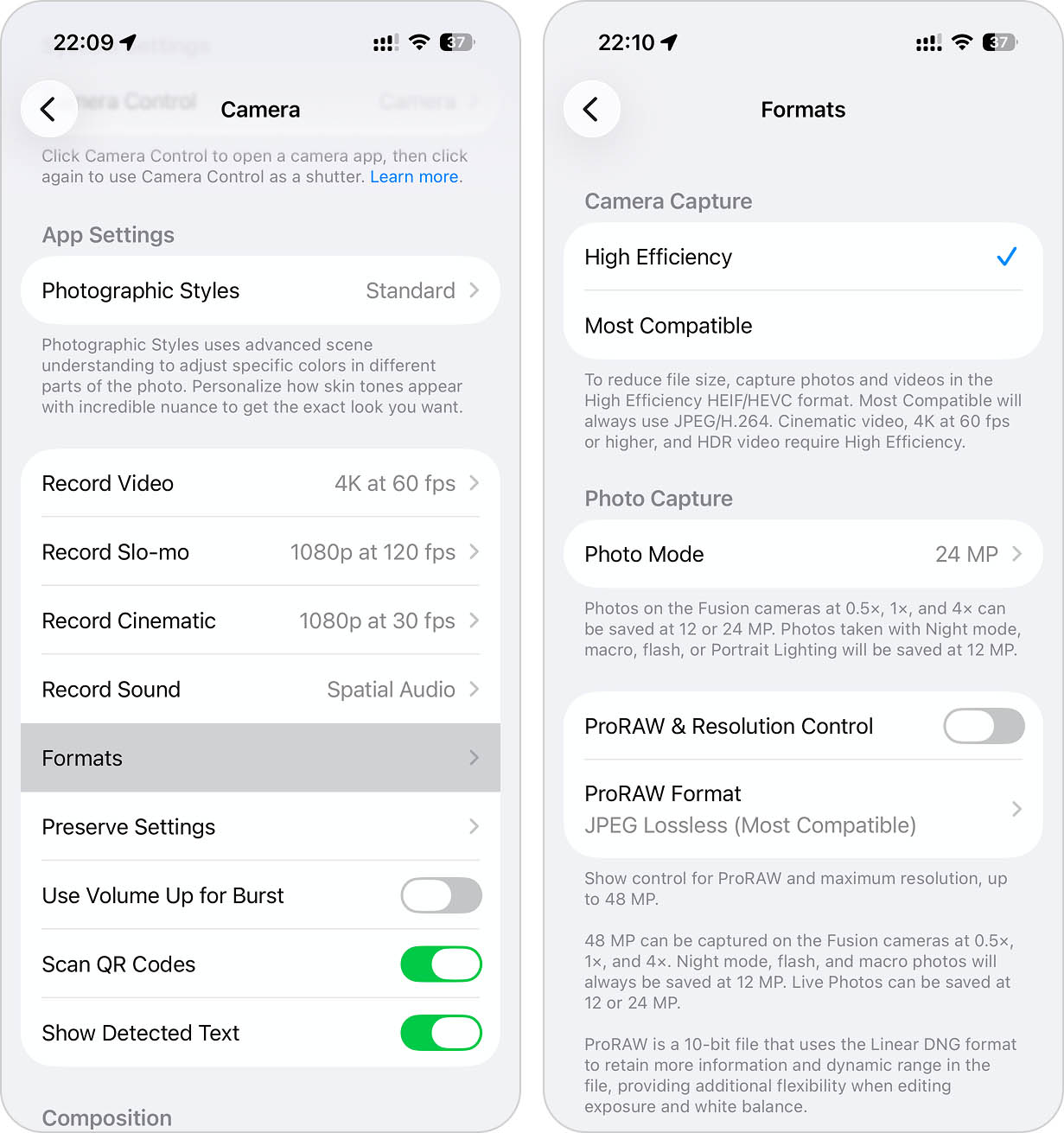
However, keep in mind that this only applies to photos taken after you change the setting and won’t modify photos that are already stored on your iPhone. If you want to use your iPhone to compress existing photos or other images, we’ll explain (and show) how to do that in the methods below.
How to Compress Photos on an iPhone
There are many ways to compress photos on the iPhone, depending on what you need them for and how much control you want over the reduction. The methods below cover all common scenarios where you’d need compression and they use all the tools and workarounds the iPhone has to offer.
Method 1: Convert Live Photos to Still Images
When discussing photo compression on an iPhone, Live Photos deserve special attention. Unlike standard photos, Live Photos also store a short video clip captured before and after the shutter button is pressed. In other words, they are neither purely photos nor purely videos.
Because of this extra data, Live Photos take up significantly more storage space than regular images. Converting them to still images can reduce their file size and make them easier to share or use outside the Apple ecosystem, as the Live Photo effect often isn’t supported anyway. Third-party apps can make the process much faster.
One example is Clever Cleaner, a completely free iPhone cleanup app that includes a dedicated Lives feature. It can remove the video component of Live Photos while keeping the still image intact.
To convert Live Photos with Clever Cleaner:
Step 1. Download Clever Cleaner from the App Store.
Step 2. Launch the app and grant access to your photo library.
Step 3. In the bottom menu, tap Lives.
Step 4. Select the Live Photos you want to convert.
Step 5. Tap Compress. The app will display the amount of storage space you can save.
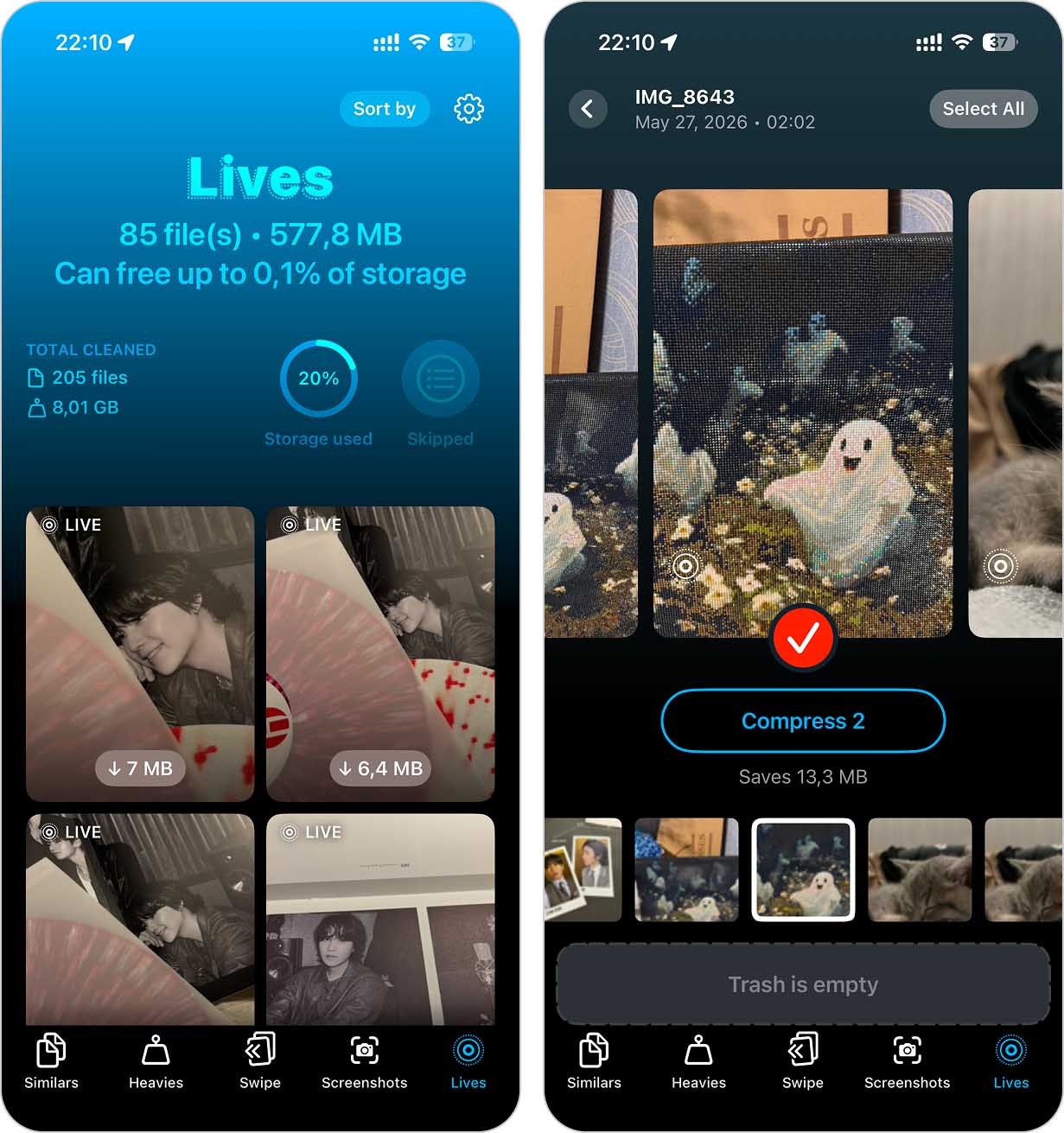
Step 6. After the conversion is complete, choose whether to Keep in Trash or Delete the original Live Photos.
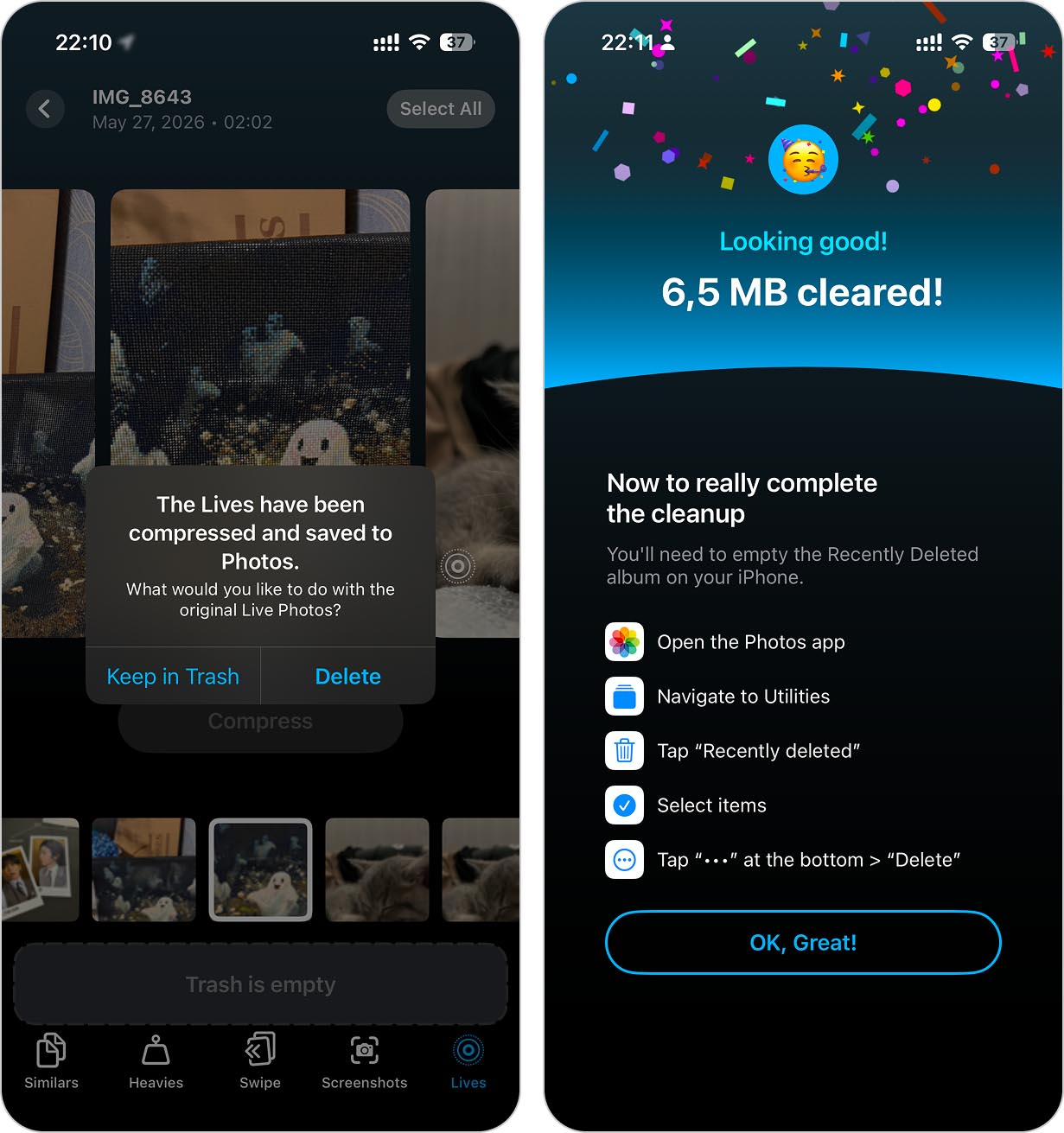
If storage space is the reason you started looking into photo compression in the first place, Clever Cleaner can help beyond Live Photos. The app can also identify duplicate photos, similar images, large videos, and screenshots that no longer serve a purpose. With just a few taps, it’s possible to reclaim dozens of gigabytes of storage space.
Method 2: Utilize Online Photo Compressors From Your iPhone or a Computer
Online compressors are photo compression tools embedded into websites. They are one of the most convenient ways to compress photos because they don’t require any downloads or installation—just a browser and a stable connection. You can even utilize them directly from your iPhone browser!
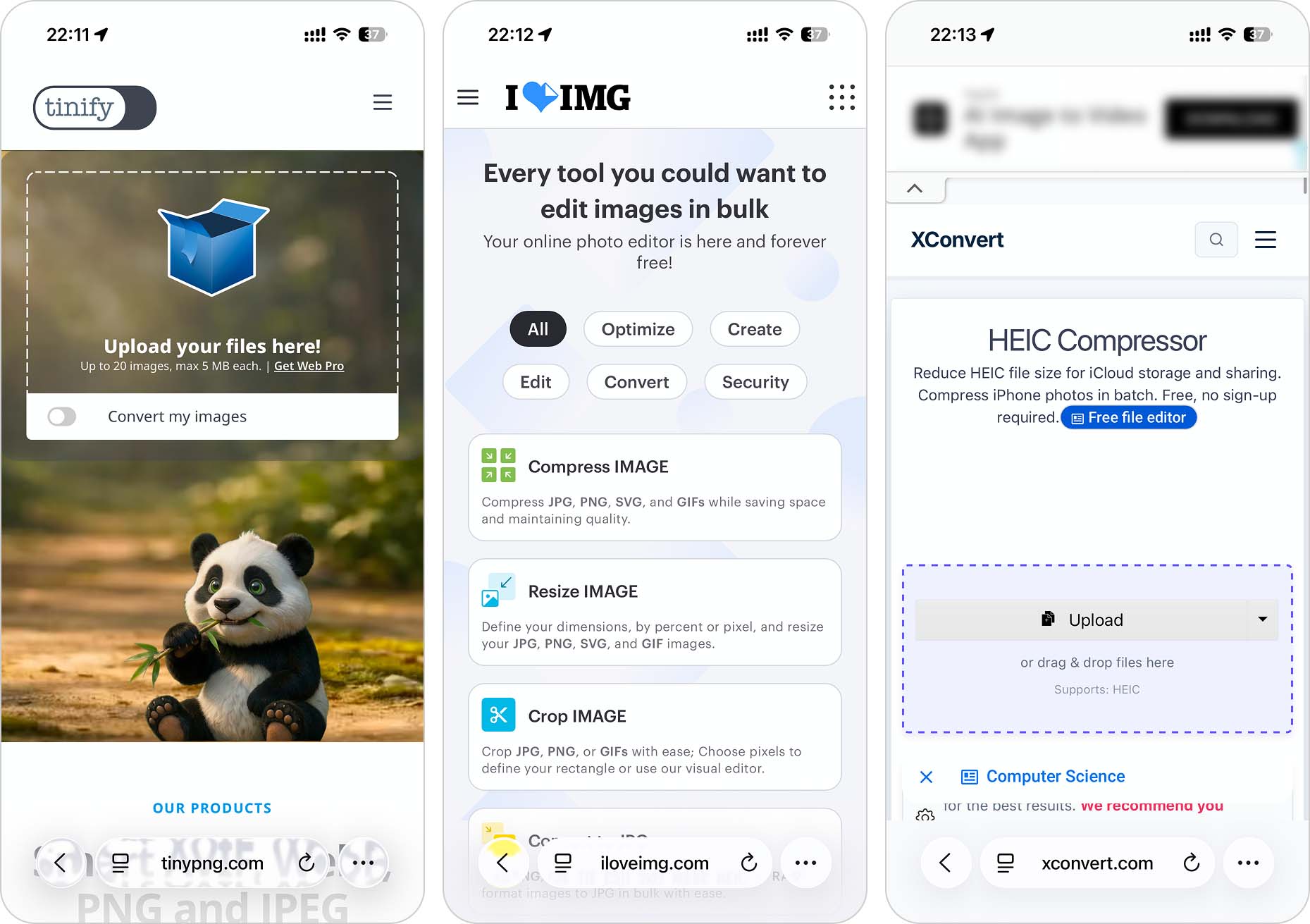
You’ll find a lot of options if you key in “online photo compressor” in a search engine, but here are some of our favorites:
- TinyPNG. A straightforward web app that only offers a compression tool. All you have to do is drag and drop your photos into the browser and click 2 buttons to compress the pictures on your iPhone. We use this one a lot. Only supports WebP, PNG, and JPEG. However, uploading photos directly from your iPhone (using a mobile browser like Safari) automatically converts HEIF/HEIC photos to JPEG for compression and output.
- iLoveIMG. An all-in-one suite of image tools where you can compress, resize, and perform other modifications to your photos. The interface is simple and easy to understand, even when modifying photos in bulk. Supports JPG, PNG, SVG, and GIF files. Similar to TinyPNG, direct upload from your iPhone automatically converts HEIF/HEIC photos to JPEG.
- XConvert Online HEIC Compressor. An intelligent HEIC/HEIF compressor. Compress the images on your iPhone and set your own percentages for photo file size and quality reduction and/or specify your photos’ exact output size. Its web interface is simple but effective. It’s the only web app on this list that can compress raw photos on your computer.
Method 3: Use iPhone Photo Compressor Apps
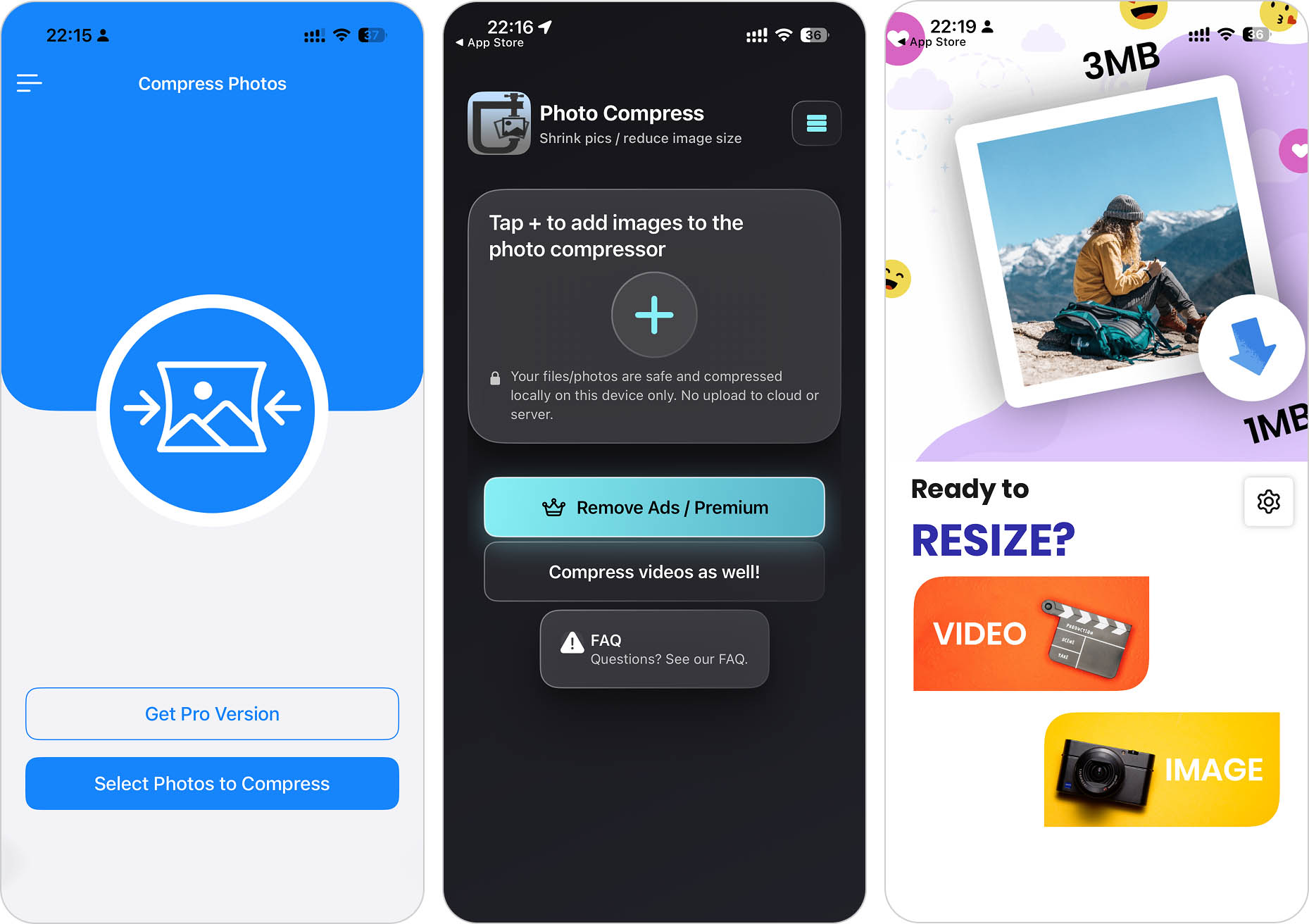
The App Store has a wide selection of photo compressor apps for the iPhone. Many of them can not only compress photo sizes on your iPhone, but some of them allow you to modify image dimensions and even compress or resize videos. They can work directly on your device and usually have direct access to your Photos app and iCloud.
Apps are much more powerful and convenient than browser tools but the good ones usually require payment to remove ads or unlock advanced features.
- Compress Photos & Pictures. One of the best apps for photo compression for the iPhone. Compress individual images or multiple photos in bulk while seeing in real-time how much storage space is being freed up. It even compiles all compressed photos in an album for you. Super simple interface and you can bulk compress up to 3 photos at once for free.
- Photo Compress – Shrink Pics. A popular photo compression app that allows you to compress individual or multiple photos with your own custom parameters. It only works with JPEG, but you can conveniently convert HEIC/HEIF photos from within the app. You can pay to remove apps and access advanced features.
- Resize: Photo Video Compress. Expensive but high-quality app with a beautiful interface and lots of features. Compress and resize photos and videos without sacrificing quality; crop and convert images. You can even add custom canvases to your photos for social media.
The remaining methods use tools that are already built into the iPhone. Some of them may seem a little unusual or less convenient than dedicated compression apps, but they require no downloads and may be exactly what some users are looking for.
Method 4: Compress Photos With the Shortcuts App
The Shortcuts app is one of the most powerful built-in tools on the iPhone. It allows you to automate almost any repetitive task using simple actions and rules. For example, you can create shortcuts that automatically delete screenshots older than a certain date, move large files to iCloud Drive, or rename files in bulk.
Photo compression is another task that Shortcuts can handle. By combining several actions together, you can create a workflow that converts images into a more storage-efficient format and saves the compressed copy back to your photo library.
To create a photo compression shortcut:
Step 1. Open the Shortcuts app and tap the + button to create a new shortcut.
Step 2. Add the Select Photos action and enable the option to select photos manually.
Step 3. Add the Get Name, Get File Extension, and Get File Size actions. These are optional, but they allow the shortcut to display information about the original image before compression.
Step 4. Add the Convert Image action and set the output format to HEIF.
Step 5. Add another set of Get Name, Get File Extension, and Get File Size actions for the converted image.
Step 6. Add a Text action and configure it to display information about the original and converted files.
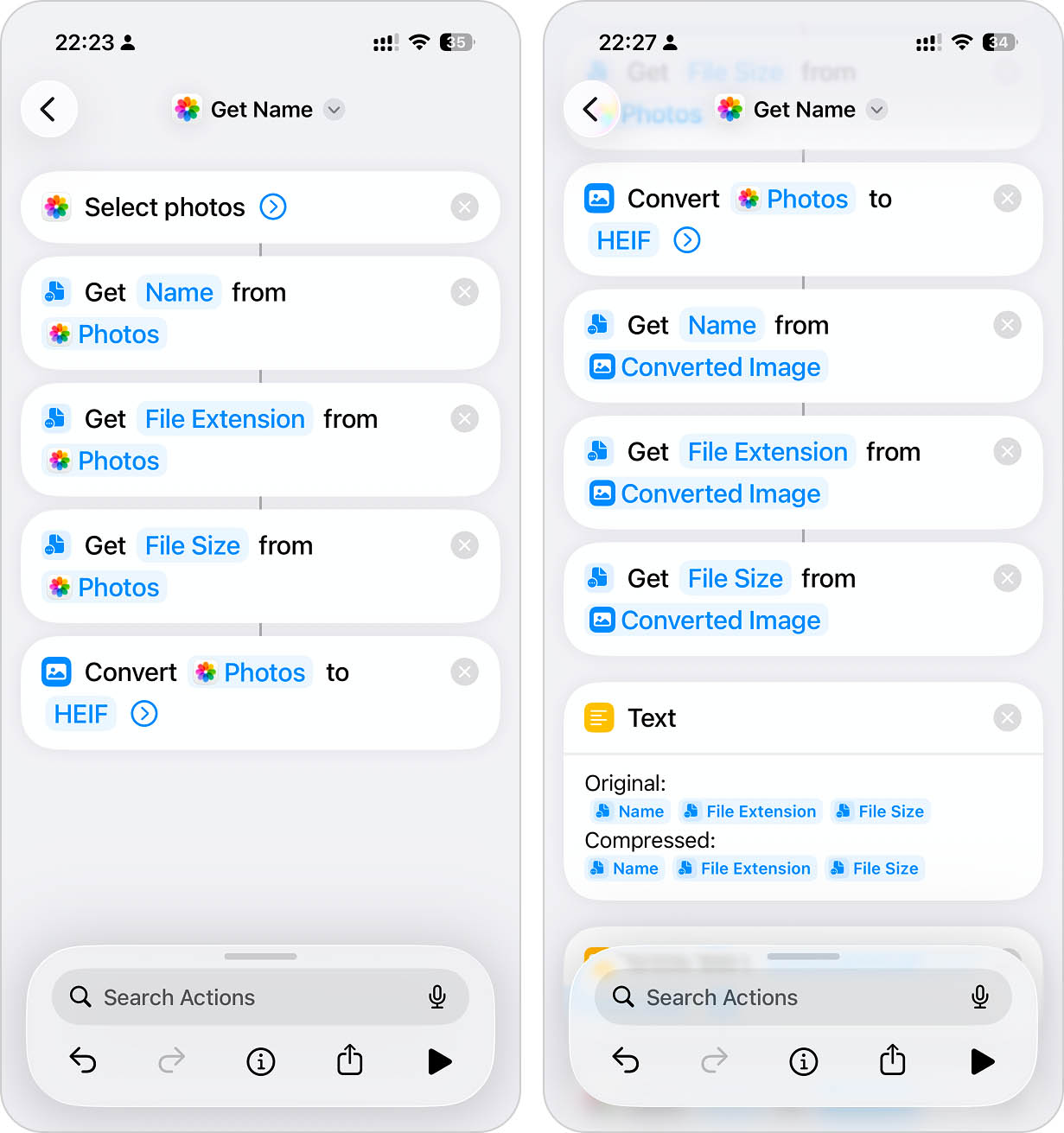
Step 7. Add a Show Alert action so the shortcut can display the compression results.
Step 8. Add the Save to Photo Album action and save the converted image to the Recents album.
Step 9. (Optional) Add a Speak Text action if you want the iPhone to announce when the conversion is complete.
Step 10. Add a Quick Look action to preview the compressed image after it has been saved.
Step 11. Run the shortcut and select the photo you want to compress.
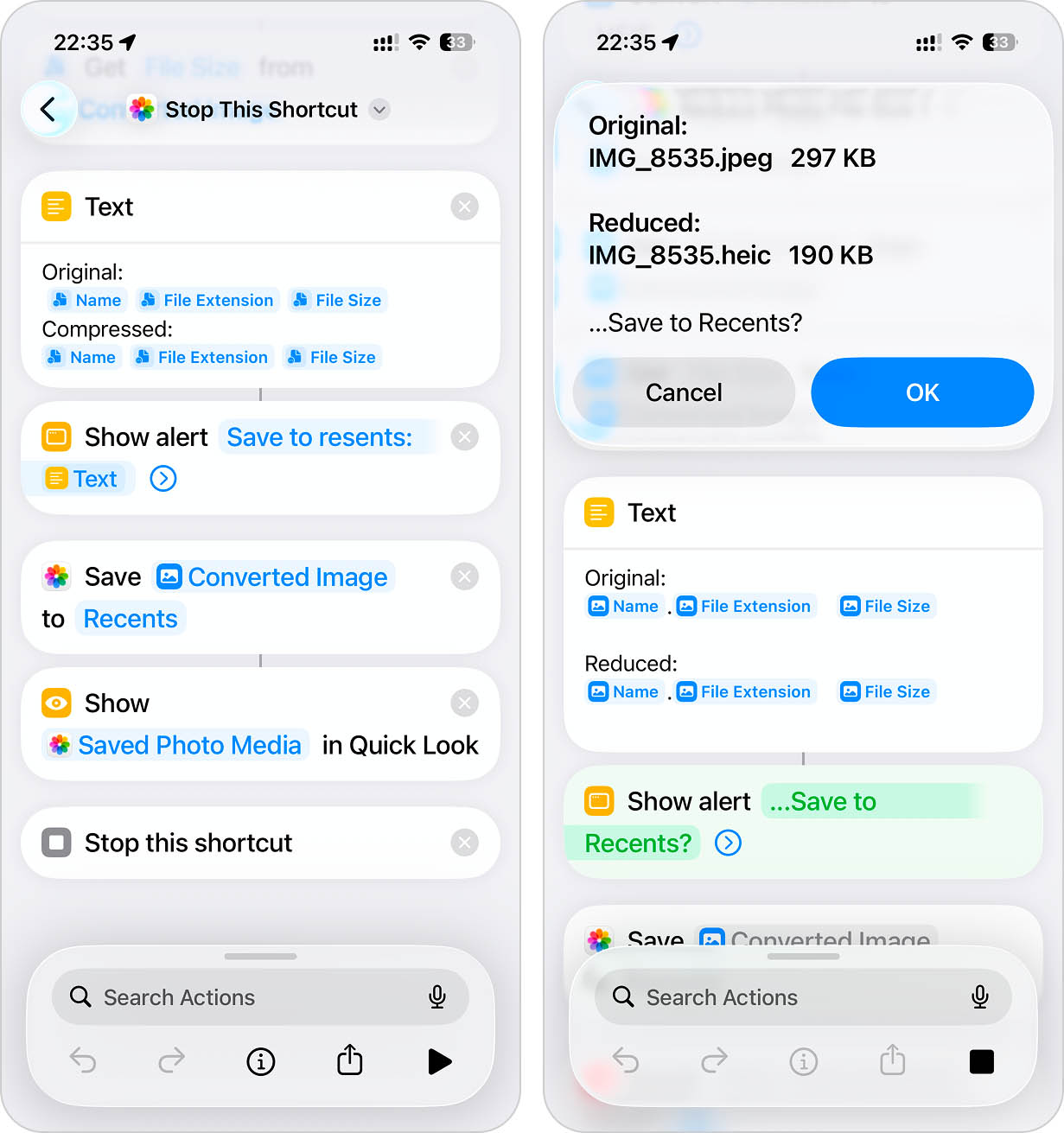
This shortcut is only an example of what’s possible. If you spend some time experimenting with the Shortcuts app, you can create much simpler versions or much more advanced workflows.
Method 5: Send the Photos Through a Mail Client or Messenger Apps
Mail clients and messenger apps (like WhatsApp, etc.) automatically compress and/or resize photos or at least offer such options when sending photos. By sending photos to yourself via mail and messenger apps, you can automatically compress multiple images quickly without much work.
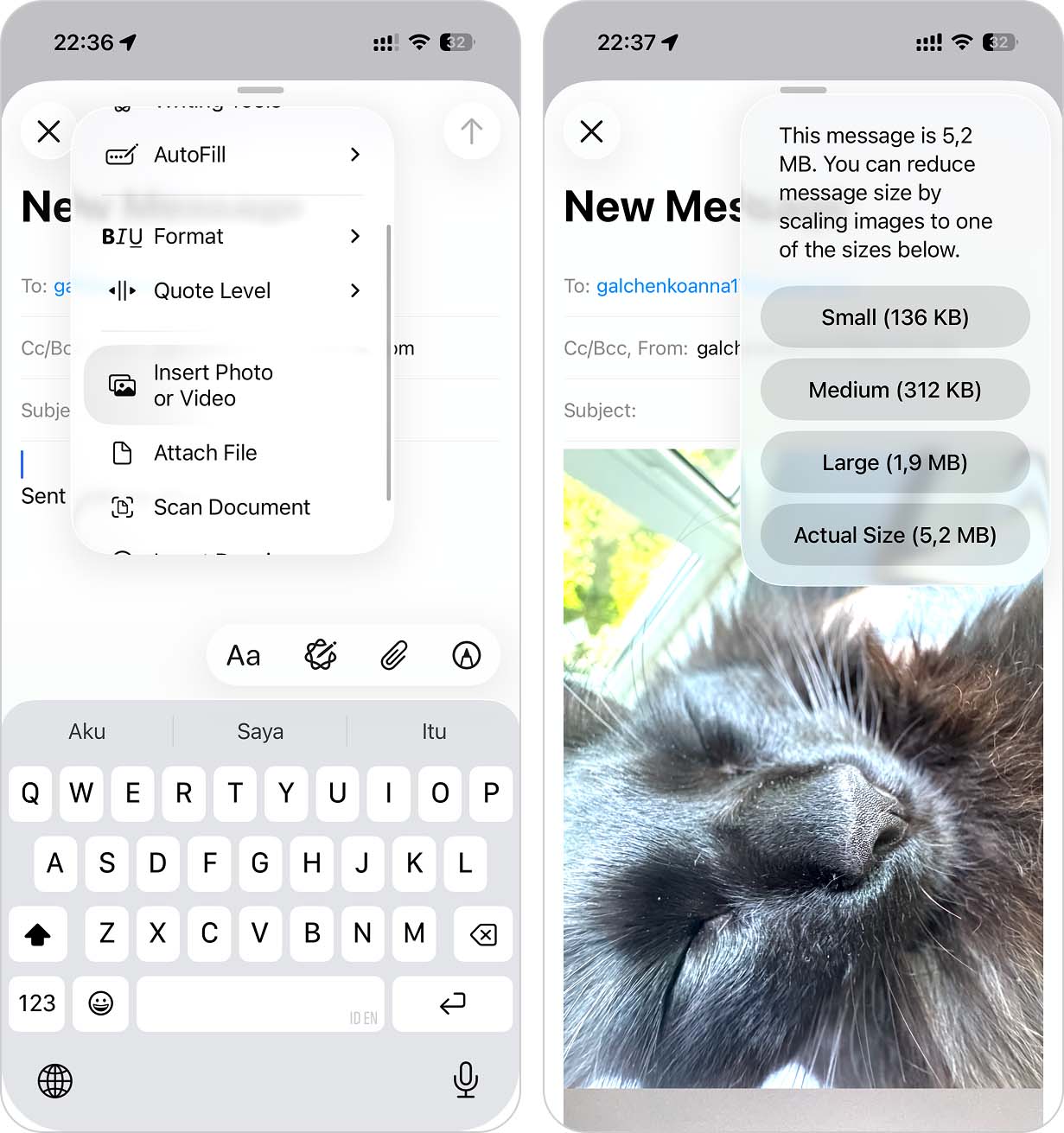
For example, Apple’s Mail app allows you to resize photo attachments right before sending emails. We’ll demonstrate how it works:
To compress your photo for email attachment:
Step 1. Open the Mail app and create a new message. In the email body’s field, tap and hold on the blank space until a menu appears. Then, tap the right arrow twice and tap InsertPhotoor Video.
Step 2. Choose the photos you want to attach and tap Done.
Step 3. Attempt to send the email–a popup should appear that will allow you to compress your photos.
Keep in mind that these services typically reduce image quality as part of the compression process. If preserving as much detail as possible is important to you, consider using one of the methods above instead.
Method 6: Crop Your Photos
The smaller a photo’s dimensions are, the smaller its size compared to the original. By cropping out unnecessary parts of your photos, you can reduce their file size further.
Using the Photos app, you can crop your photos freehand or by using one of the various pre-made sizing settings.
If you want to resize your photos without cropping, consider using an app like Image Size instead.
To crop your photos using the Photos app:
Step 1. Open the Photos app and open the photo you want to resize. Then tap the edit button in the bottom menu.
Step 2. Tap the crop button at the bottom of the screen. You can now choose one of the preexisting dimensions or manually drag the corners of the cropping tool inward until you’re satisfied with the output. Finally, tap Done.
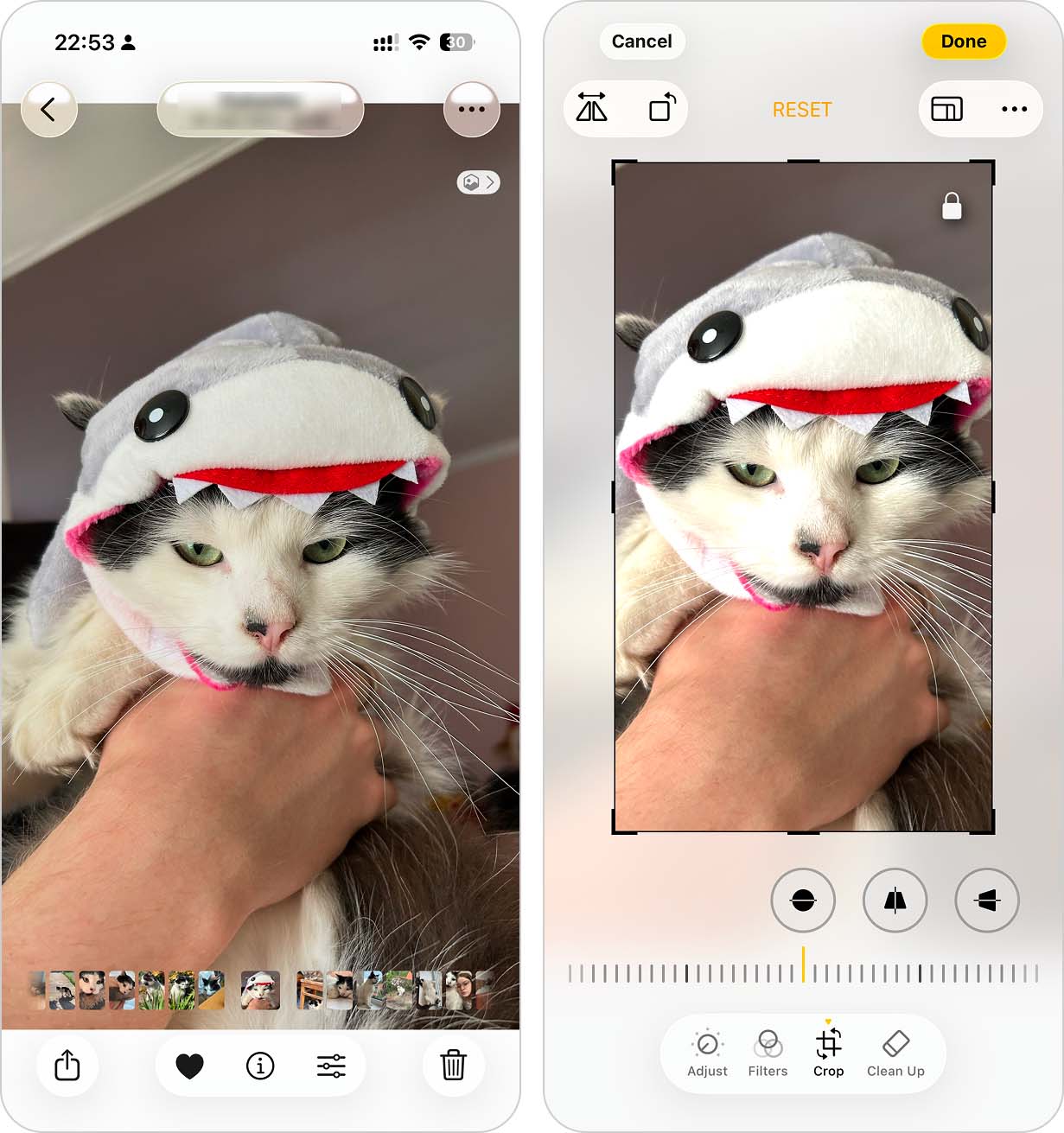
But the Photos app preserves the original image so you can revert your edits later. Because of this, cropping alone may not immediately reduce the amount of storage space used by the photo.
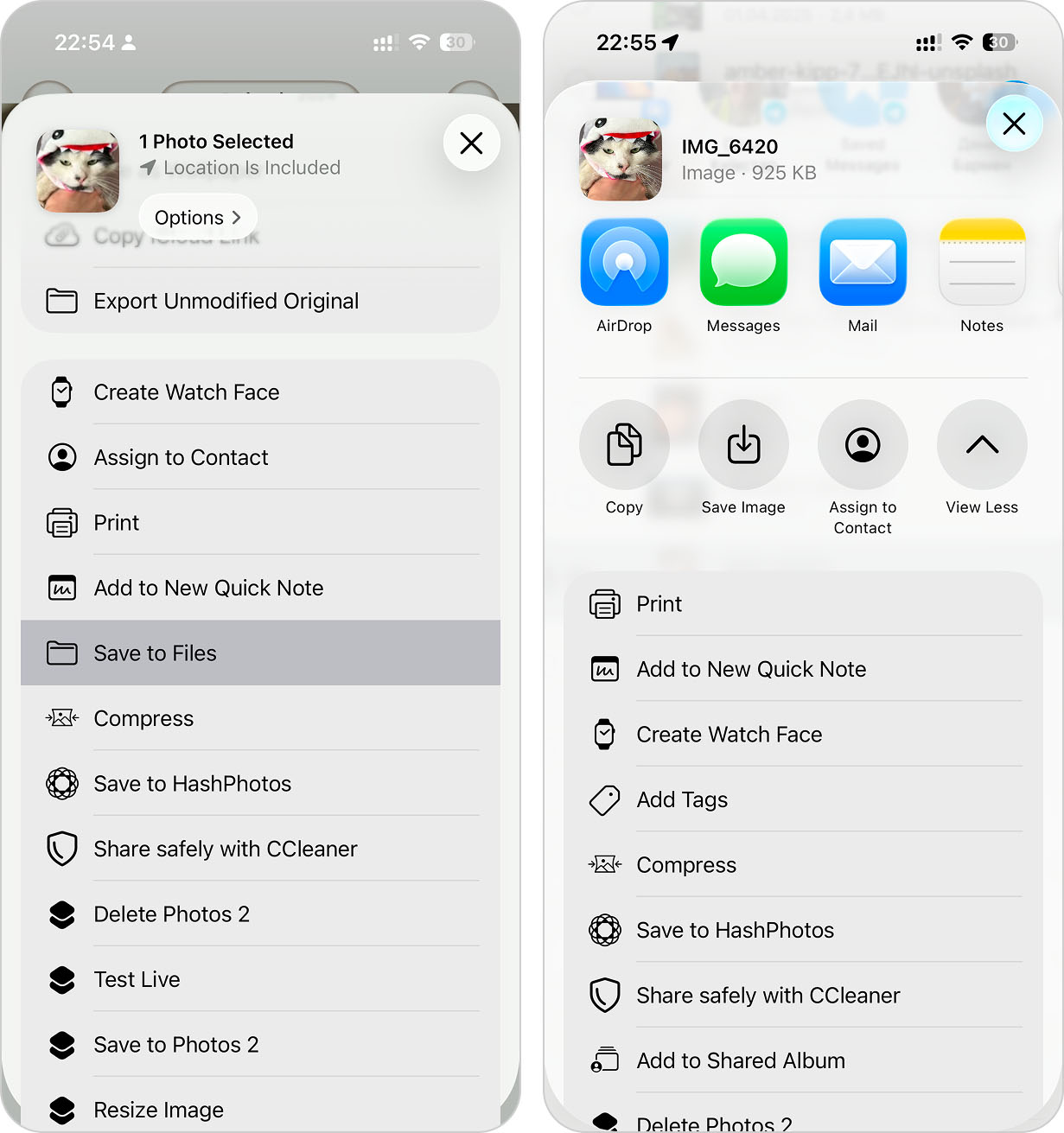
Step 1. To create a new file that only contains the cropped version, tap the Share button and select Save to Files.
Step 2. Choose a location in the Files app and tap Save.
Step 3. Open the Files app, locate the image you just saved, tap the Share button, and select Save Image.
Step 4. A new copy of the cropped photo will be added to your Photos library. Once you’ve confirmed that the new image was saved correctly, you can delete the original photo if you no longer need it.
Method 7: Take a Screenshot of the Photo
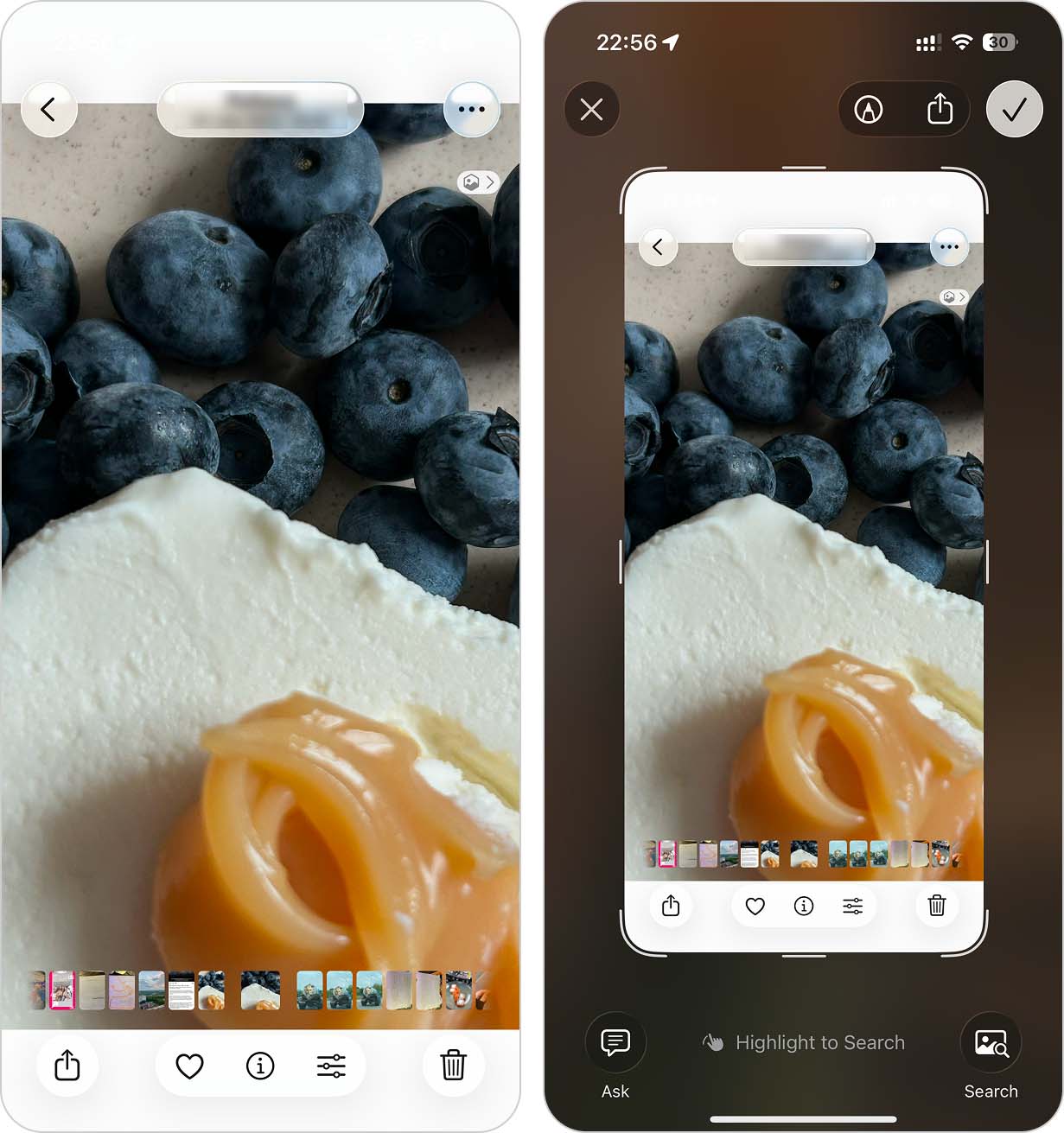
Taking a screenshot of a photo is another quick way to reduce its size, but it only works in certain situations. Since iPhone screenshots are saved as PNG files, they can actually end up larger than the original image if that image is already stored as a HEIF or JPEG file. As a result, we only recommend this method for unusually large images.
Camera photos are also higher in resolution and capture details that screenshots don’t, especially when you use features like HDR Mode.
To take a screenshot of your photo, use one of these button combinations (quickly press and release them at the same time):
- If your iPhone has a Home button: Home button + Lock button
- If your iPhone has NO Home button: Lock button + Volume Up button
Need More Storage But Can’t Delete Stuff?
Most of the methods in this guide focus on reducing the size of individual photos. But what if storage space is the real problem and you don’t want to compress, modify, or delete anything?
iCloud’s Optimize iPhone Storage feature may be a better solution. Instead of compressing your photos, it stores the original, full-resolution versions in iCloud and keeps smaller, optimized copies on your device. This allows you to reclaim storage space without deleting photos or manually modifying them.
To enable Optimize iPhone Storage on your iPhone:
Step 1. Open the Settings app and tap your Apple ID.
Step 2. Tap iCloud.
Step 3. In the Saved to iCloud section, tap Photos.
Step 4. Enable Sync this iPhone and select Optimize iPhone Storage.
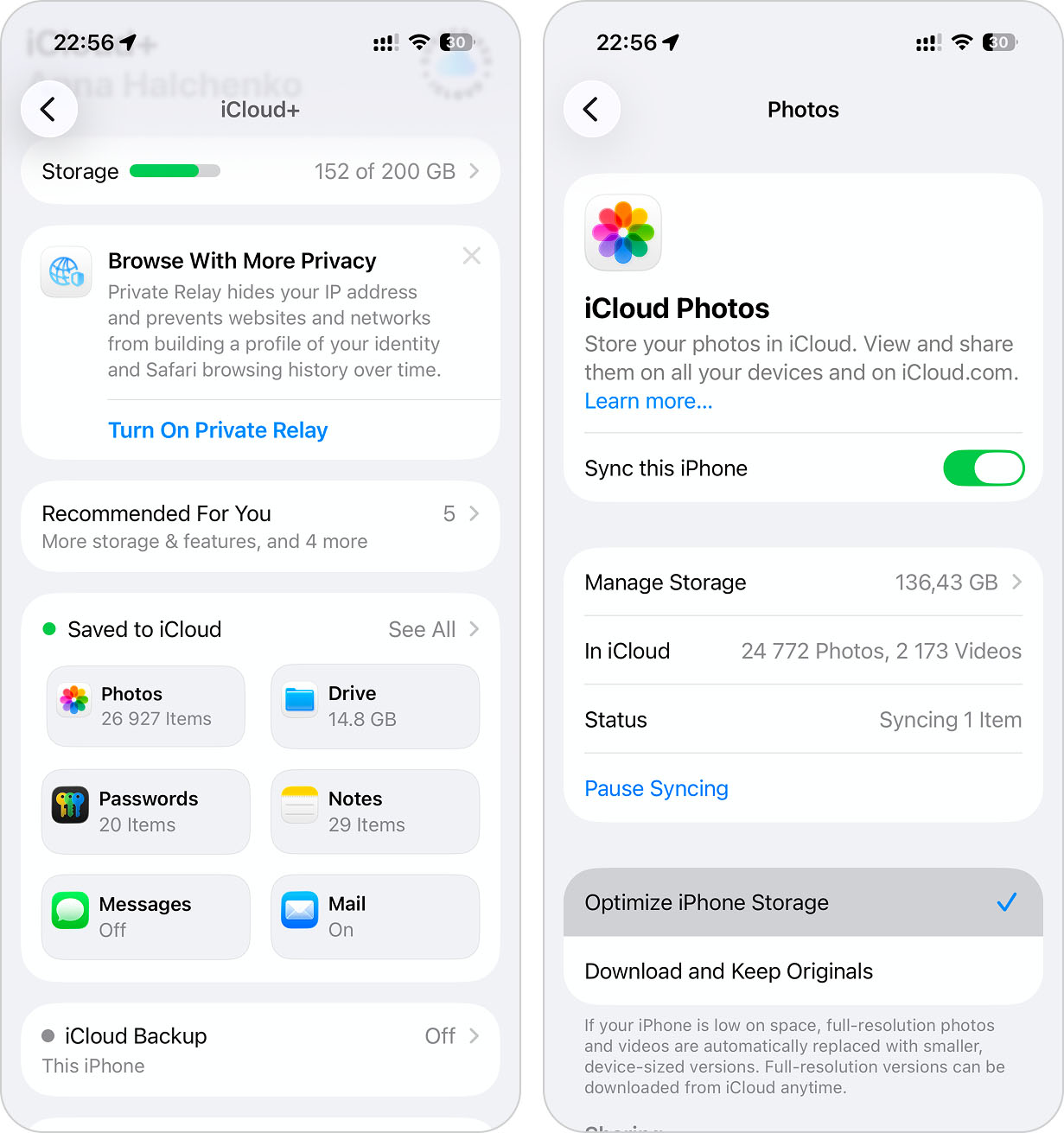
Give your device enough time to act on these settings. Lock it, plug it into a socket, and leave it alone for 30 minutes to an hour.
If you need even more storage but still don’t want to remove your data or use iCloud, don’t worry–we literally have a guide for that. Check out our blog post on how to free up storage on an iPhone without deleting anything. It has a total of 7 different methods–some of which you might not have even encountered before!
FAQ
- Convert Live Photos into regular still images with an app like Clever Cleaner.
- Use the Shortcuts app to convert images to a more storage-efficient format, such as HEIF.
- Resize your photo by sending it in an email with the Mail app (create a new email > Insert Photo > tap Send > select a size).
- Send your photo to yourself using a messenger app, which automatically compresses attachments.
- Use an online compressor (web app), such as TinyPNG or iLoveIMG.
- Use a photo compression app from the App Store.
- Convert Live Photos into regular still images.
- Use the Shortcuts app to convert images to a more storage-efficient format.
- Send photos to yourself via email or messenger apps, which usually compress attachments automatically.
- Use online image compressors (browser apps).
- Use photo compressor apps (App Store).